Track HubSpot Form Submissions with Google Tag Manager and Google Analytics
HubSpot is a powerful Customer Relationship Management (CRM) tool that is favoured by a number of our clients – most notably in manufacturing and agricultural space. Hubspot brings together analytics, pipeline management, marketing analytics and sales conversion data – it’s an incredibly powerful tool.
We use HubSpot to enable our clients to manage their Existing Customer Marketing (ECM) activity as well as to optimise our digital marketing campaigns including Paid Search, Banner Ads, and Social Media Marketing campaigns – particularly when we’re looking to drive leads and prospective customers to our clients sales teams.
HubSpot can integrate with a range of website Content Management Systems – unfortunately for us and our developer, HubSpot likes to utilise iFrames to populate the forms, which can mean that measuring Form Submissions in HubSpot can be a bit trickier than normal.
If you can’t measure it, you can’t manage it
If the in-market activity is designed to deliver leads and prospective customers, then it’s absolutely essential we’re able to measure this alongside all the activity we’re running, so we created this guide to help you measure HubSpot form submissions in Google Analytics using Google Tag Manager.
Overview
To ensure we’re successfully measuring HubSpot form submissions we need to:-
- Step 1:- Create a Custom HTML tag in Google Tag Manager.
- Step 2:- Add a dataLayer variable to read the form’s GUID.
- Step 3:- Create a trigger that fires on the form success event.
- Step 4:- Add a Google Analytics Event Tag that reports the data to GA4
Step 1:- Create a Custom HTML tag in Google Tag Manager
Tag Type:- Custom HTML
Tag Name:- Forms – HS Success Listener
Triggering:- All Pages
Custom HTML tag content:-
<script type="text/javascript">
  window.addEventListener("message", function(event) {
    if(event.data.type === 'hsFormCallback' && event.data.eventName === 'onFormSubmitted') {
      window.dataLayer.push({
        'event': 'hubspot-form-success',
        'hs-form-guid': event.data.id
      });
    }
  });
</script>
As per the below screenshot:-
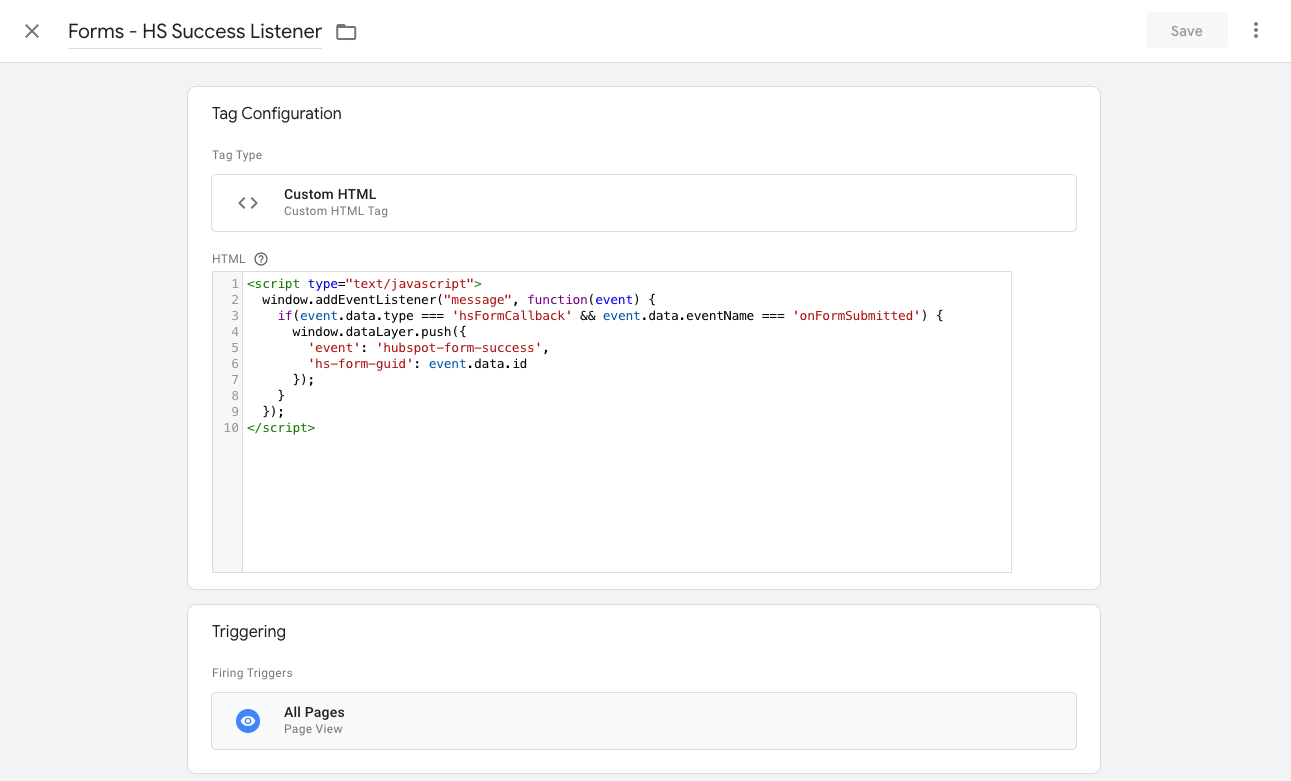
This will ensure that every page has the custom script injected into the page – this script pushes hs-form-guid to the dataLayer once a successful HubSpot submission occurs.
Step 2:- Add a dataLayer variable to read the HubSpot form’s GUID.
GTM Name:- Forms – hs-form-guid
Variable Type:- Data Layer Variable
Variable Name:- hs-form-guid
As per the below screenshot:-
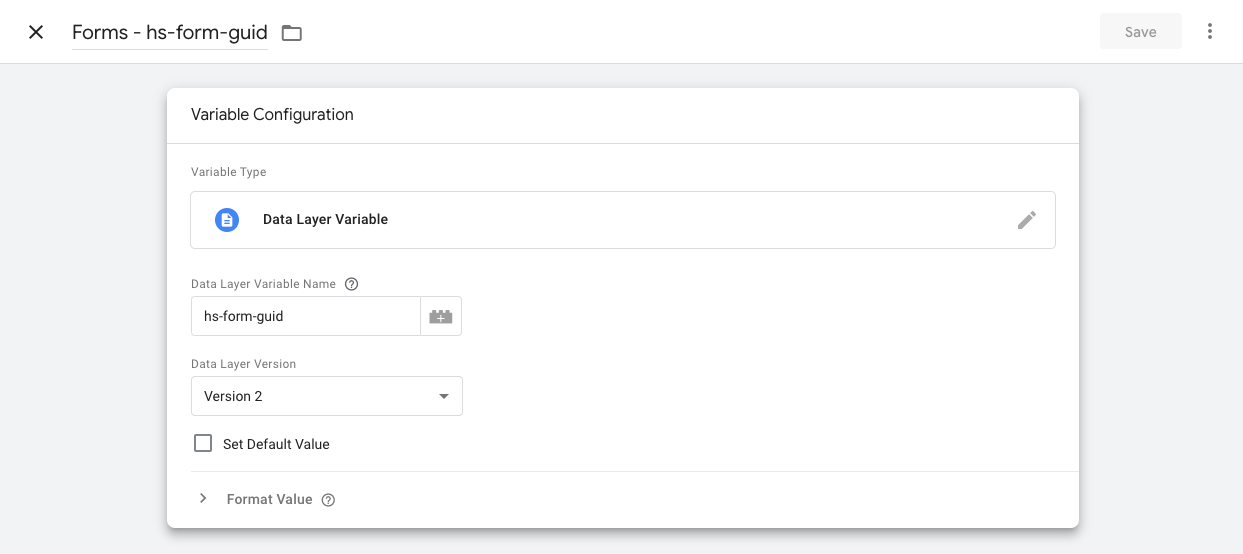
Now we have a variable that matches hs-form-guid in dataLayer.
Step 3:- >Create a trigger that fires on the form success event.
Trigger Type:- Custom Event
Trigger Name:- Hubspot Form Trigger
Event Name:- hubspot-form-success
Trigger Fires On:- All Custom Events
As per the below screenshot:-
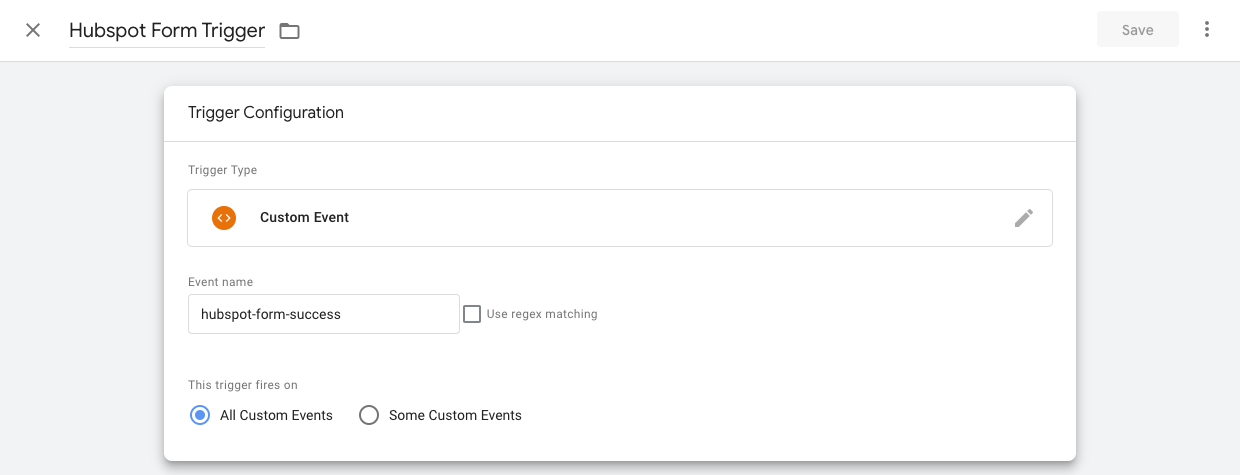
Now when hs-form-guid is pushed to the dataLayer, our trigger fires – now we just need to create an event tag that is linked to the Trigger.
Step 4 – Create a GA4 Event Tag
Tag Type:- Google Analytics GA4 Event
Tag Name:- GA4 | Hubspot Form Submit
Measurement ID:- Your Google Analytics G-Stream ID
Event Name:- hubspot_lead
Event Parameters:-
Name:- Page URL Value {{Page URL}}
Name:- Click Text Value {{Click Text}}
As per the below screenshot:-
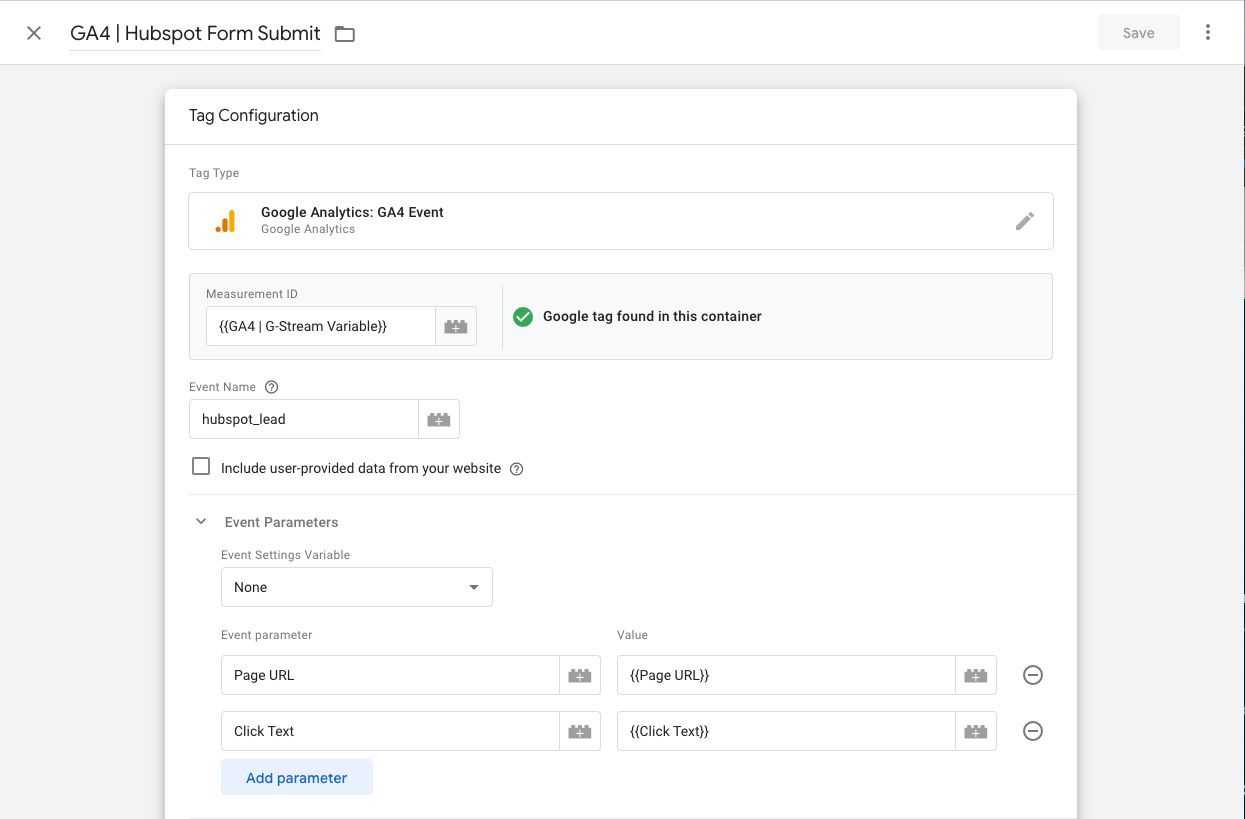
Now when our trigger fires – the event occurs. This can be measured in Google Analytics 4 (GA4) – once in GA4 we can then use this event to optimise our google ads as a successful conversion event!
Summary
HubSpot is one of the leading CRM Systems particularly in the manufacturing and agricultural sectors – ensuring that it works seamlessly with your website, with your analytics and with your marketing campaigns is absolutely paramount.
If you need help integrating HubSpot into your marketing analytics or if you need help generating quality leads that convert, don’t hesitate to get in touch.
FizzyPop is a Digital Marketing Agency
Say hello…
Let’s talk, chat, email, however you like to make things happen.
Call +64(0)2777 666 95 or email Hello@FizzyPop.nz